

Product photography
A studio product photograph with a clear silhouette, controlled light and a simple background. Describe the visible shape and camera angle; do not infer product dimensions.
Convert a source image into a detailed, model-aware prompt that preserves its visible subject, composition, lighting, and style.
Reference examples with written scene briefs. These briefs are not claimed to be extracted results or the original prompts.
A studio product photograph with a clear silhouette, controlled light and a simple background. Describe the visible shape and camera angle; do not infer product dimensions.
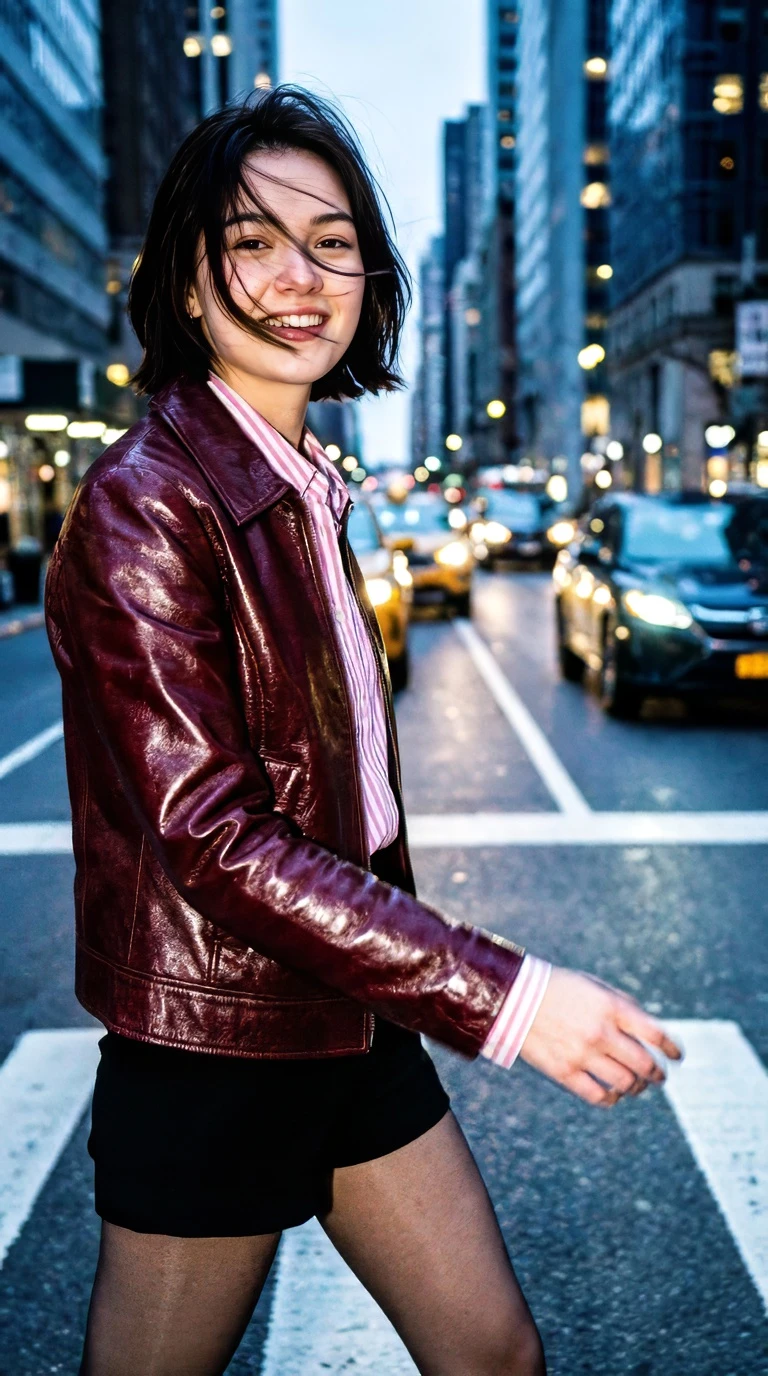
A street portrait with a burgundy jacket, cool city background and shallow depth of field. Describe the pose, framing and light without inferring identity.
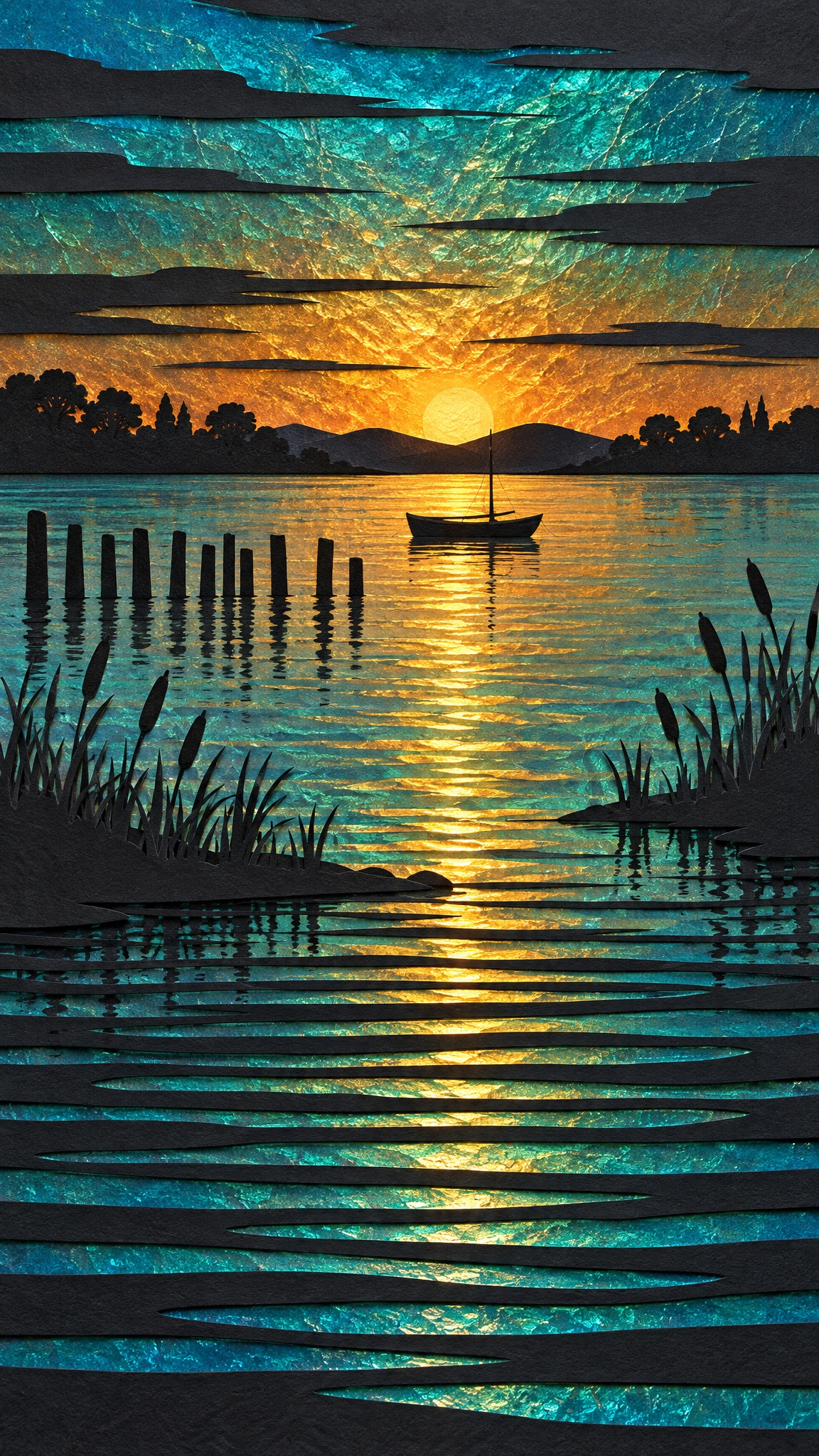
A layered paper illustration of a sailboat at sunset, with turquoise water, a golden reflection and dark cut-paper reeds. Preserve the layering and the warm–cool color contrast.
Image to prompt turns a reference picture into a written visual brief. Use it when you can show the composition you want but cannot yet describe it. The useful output is an editable account of subject, placement, light and style. This is different from image editing: analyzing a photo does not remove objects, sharpen pixels or create another image until you start a separate generation task.
A prompt is a written instruction for a generation model. It describes visible content and the choices that matter to your next image or video. It does not recover a hidden seed, identify the original model, or reveal an original author’s private prompt. Review the text as a new working description rather than proof of how a reference was made.
For product listings, preserve shape, viewpoint and background but supply your own verified material and size information. For portrait concepts, borrow framing and light rather than claiming to recover a person’s identity. For illustration studies, describe paper texture, cut edges, depth and palette. These three uses need different details even though they share the same upload control.
For repeatable comparisons, change one instruction at a time. Keep the subject, framing and model fixed while testing light or motion. Save the version you actually used alongside its result, because a copied prompt is editable text and cannot by itself reproduce an image or video. A different model, seed or reference can change the output even when the words are identical.
Choose a target before submitting. A target tells the prompt tool which medium and conventions to write for; it does not make every named model available inside Goglo. After reviewing the result, copy it to your own tool or continue with the image or video model supported by the Goglo workspace. Keep the subject description when switching tools, then adjust parameters in the destination.
Prompt creation and final media generation are separate actions. Image analysis uses token-based credits, text prompting follows account terms, and video analysis shows 3 credits. Final image or video generation uses its own credit charge in the destination workspace. A registered account is required to submit prompt tasks. Opening a page and browsing its examples do not submit a paid task.
Use references you have permission to upload. Visual analysis can misread small text, reflected objects, occluded features and fast action. Review sensitive or identifying details before copying a result elsewhere. Temporary input recovery after sign-in is stored in this browser tab for up to 30 minutes; it is not a guarantee that server-side task history or uploaded media is deleted.
No. Many prompts can produce similar scenes. The result is a new description of visible content, not a reconstruction of hidden settings or proof of authorship.
No. Target models guide how the text is written. The continuation button explicitly uses GPT Image 2.0 for images and Seedance 2.5 for video; you can copy text to another service yourself.
Correct the subject, setting or motion in your guidance and run the task again, or edit the result after copying it. A retry creates another task and can consume credits. Keep the original reference available so you can compare the description against it.